Adding a second monitor can improve multitasking, gaming, presentations, and home-office productivity—but the right adapter depends on your computer’s ports and whether you need mirrored or extended screens.
We selected 10 HDMI splitters and multi-display adapters covering HDMI, USB-C, DisplayPort, USB-A, 4K resolution, and different operating-system requirements. Use the guide below to match the connection type and display mode to your setup.
Best 10 Hdmi Splitters for Dual Displays Picks for 2026
Best for Extended Laptop Workspaces
OREI SplitExtend 4K Dual Monitor Adapter

- Extends to two HDMI monitors
- Supports up to 4K at 60Hz
- DisplayLink drivers required
Best For: Productivity-focused Windows, Mac, and ChromeOS setups
Best for Simple Mirrored Displays

- Mirrors one source to two displays
- Supports up to 4K at 30Hz
- Includes a 4-foot HDMI cable
Best For: Presentations and shared viewing with identical screens
Best DisplayPort-Based Extended Setup
Dual HDMI MST DisplayPort Adapter
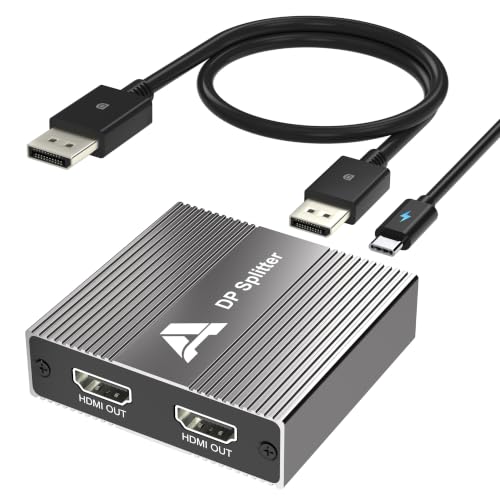
- Supports mirror and extended modes
- Up to 4K at 60Hz on compatible systems
- No driver installation required
Best For: DisplayPort desktops and mini PCs with two HDMI monitors
Best for Flexible Laptop Expansion
OREI Dual HDMI Display Adapter

- Supports mirrored or extended dual-display viewing
- USB-A and USB-C connectivity
- Requires driver installation and an Intel i5 or higher
Best For: Windows users creating a three-screen productivity setup
Best Plug-and-Play Mirror Splitter

- Mirrors one HDMI source to two displays
- Supports 4K at 30Hz and 1080p at 60Hz
- No driver installation required
Best For: Duplicating video or presentations across two screens
Best for Dual 4K Windows Workspaces
UANTIN USB-C Dual HDMI Adapter

- Supports two extended 4K@60Hz displays on Windows
- Plug-and-play with no driver or external power
- Requires USB-C DP Alt Mode and Windows MST
Best For: Windows users needing an independent dual-monitor workspace
Best Budget USB Option
WAVLINK USB to Dual HDMI Adapter

- Dual displays from USB 3.0 or USB-C
- Up to 1080p@60Hz on both screens
- Driver required; productivity-focused
Best For: Office multitasking on compatible Windows, Mac, and ChromeOS systems
Best Dual-4K USB Pick
WAVLINK DisplayLink Dual HDMI Adapter

- Two simultaneous 4K@60Hz outputs
- Hybrid USB-A and USB-C connectivity
- DisplayLink driver required
Best For: Dual-4K productivity setups on compatible Macs and Windows PCs
Best for Extended Laptop Workspaces – OREI SplitExtend 4K Dual Monitor Adapter
For shoppers comparing hdmi splitters for dual displays, the OREI SplitExtend is designed for extending a computer screen across two HDMI monitors rather than simply duplicating it. It supports up to 4K at 60Hz on both extended screens, but requires DisplayLink drivers and is intended primarily for productivity use.
Best For: Windows, Mac, and ChromeOS users who want an extended dual-monitor workspace from a compatible USB-C, USB-A 3.1, Thunderbolt, or USB4 device.
Pros:
- Supports two extended HDMI displays, plus the laptop screen for up to three separate screens.
- Offers 4K at 60Hz or 2K at 60Hz on both extended screens.
- Includes a 2-in-1 cable for USB-C and USB-A connectivity.
- Supports Apple M1, M2, and M3 MacBooks with DisplayLink software.
Cons:
- Driver installation is required on Windows and macOS.
- Not recommended for gaming, graphics-intensive, or design work.
- Does not support HDCP-protected playback from services such as Netflix and Hulu.
The OREI is a productivity-focused choice when true screen extension matters more than gaming performance or streaming compatibility. Check your operating system and install the required DisplayLink driver before buying.
Best All-in-One USB-C Hub – Acer 4-in-1 Dual HDMI Adapter
The Acer 4-in-1 is more than one of the hdmi splitters for dual displays: it combines two HDMI outputs with USB-A data and USB-C power delivery. Both HDMI ports support 4K at 60Hz, provided the host device has a compatible DisplayPort Alternate Mode USB-C port.
Best For: USB-C laptops and tablets that need dual HDMI displays, fast USB-A transfers, and up to 100W charging through one compact hub.
Pros:
- Provides two HDMI ports with 4K at 60Hz support.
- Adds a 5Gbps USB-A port for faster file transfers.
- Supports up to 100W power delivery, with up to 90W supplied to the host device.
- Works with Windows and macOS devices supporting DP Alt Mode.
Cons:
- macOS can only mirror the same content across the external monitors.
- Requires a compatible DP Alt Mode USB-C port.
- A 100W external power adapter and cable are required for power delivery but are not included.
This Acer hub is a practical desk companion if your laptop supports USB-C video output and you also need charging and USB connectivity. Mac users should note the stated mirroring limitation before choosing it for an extended-display setup.
Best for Simple Mirrored Displays – avedio links 4K HDMI Splitter
The avedio links 1-in-2 unit is a straightforward option among hdmi splitters for dual displays when both screens need to show identical content. It mirrors one HDMI source to two displays, supports up to 4K at 30Hz, and includes a 4-foot HDMI cable, but it cannot create an extended desktop.
Best For: Mirroring a laptop, game console, Blu-ray player, camera, or other HDMI source to two monitors, TVs, or projectors.
Pros:
- Duplicates one HDMI signal to two displays simultaneously.
- Supports 4K at 30Hz and is backward compatible with lower resolutions.
- Includes a 4-foot HDMI cable and USB power cable.
- Requires no drivers and supports several HDMI audio formats.
Cons:
- Does not support extended desktop output or different content on each monitor.
- Requires external 5V power; the power adapter is not included.
- Does not support HDCP 2.2 and is not an HDMI switcher or audio extractor.
Choose this splitter for presentations, signage, or shared viewing where identical output is the goal. It is not suitable if you need two independent workspaces or dual-screen extension.
Best DisplayPort-Based Extended Setup – Dual HDMI MST DisplayPort Adapter
This DisplayPort-to-dual-HDMI MST adapter is suited to buyers seeking hdmi splitters for dual displays from a desktop or mini PC with a native DisplayPort output. It supports both mirrored and extended modes, with up to 4K at 60Hz when the computer, monitors, and cables meet the required specifications.
Best For: DisplayPort-equipped desktops, graphics cards, and compatible mini PCs that need two HDMI monitors in extended or mirrored mode without installing drivers.
Pros:
- Supports SST mirror mode and MST extended mode.
- Can provide up to 4K at 60Hz on compatible systems.
- Uses a detachable DisplayPort input cable for easier replacement or cable-length changes.
- Plug-and-play operation requires no driver installation.
Cons:
- Requires a built-in DisplayPort output and is not compatible with hubs, docking stations, or KVM switches.
- USB power is required, but the power adapter is not included.
- Dual 4K at 60Hz requires a DP 1.4-capable computer; DP 1.2 systems may be limited to dual 4K at 30Hz.
This adapter is a strong fit for a compatible desktop graphics setup, especially when you want hardware-based MST extension without additional drivers. Confirm the source port, graphics hardware, and desired resolution before ordering.
Best for Flexible Laptop Expansion – OREI Dual HDMI Display Adapter
If you need HDMI splitters for dual displays but want an extended workspace rather than simple mirroring, the OREI SplitExtend adapter is designed to connect one laptop to two external monitors. Its USB-A and USB-C flexibility is useful for compatible Windows, macOS, Chrome OS, and Android setups, though driver installation is required.
Best For: Windows users building a three-screen productivity setup with a laptop display plus two external monitors.
Pros:
- Supports mirrored or extended viewing across two external displays.
- Works with USB-C, USB-A, Thunderbolt 3/4, and USB4 devices through its integrated adapter.
- Compatible with Windows 11/10/8.1/7, macOS 10.10+, Chrome OS, and Android 7.1+.
- Includes one-year manufacturer support.
Cons:
- Requires Silicon Motion driver installation and is not plug-and-play.
- Needs an Intel i5 processor or higher for optimal performance.
- Does not support iOS, Linux, or Unix; Android is limited to 1080p mirroring.
The OREI is a strong choice when extended dual-monitor output is more important than the simplest setup. Confirm your operating system, processor, and permission to install drivers before buying.
Best Plug-and-Play Mirror Splitter – 4K HDMI 1-in-2-out Splitter
For shoppers comparing HDMI splitters for dual displays, this 1-in-2-out hub offers a straightforward way to send one HDMI source to two screens. It supports synchronized audio and video, requires no drivers, and is intended for mirrored output rather than independent desktop expansion.
Best For: Users who want the same content on two TVs, monitors, or projectors from one HDMI source.
Pros:
- Splits one HDMI source across two display devices.
- Supports up to 4K at 30Hz, plus 2K and 1080p at 60Hz.
- Synchronizes audio with the HDMI video signal without an additional audio cable.
- Requires no driver installation.
Cons:
- The two splitter outputs must show the same content.
- 4K output is limited to a 30Hz refresh rate.
- Actual resolution depends on the connected devices and display settings.
This Mindorlen splitter is best suited to presentations, video playback, or signage where both displays should show identical content. Choose a different type of adapter if you need separate windows on each monitor.
Best for Dual 4K Windows Workspaces – UANTIN USB-C Dual HDMI Adapter
The UANTIN adapter is a useful alternative to basic HDMI splitters for dual displays when you need independent content on each monitor. With a compatible Windows USB-C host, it supports two extended 4K displays at 60Hz, while its compact aluminum design makes it practical for office, home, or travel use.
Best For: Windows laptop users who need a high-resolution extended workspace for coding, trading, design, or multitasking.
Pros:
- Drives two independent displays at up to 4K@60Hz on Windows systems with MST support.
- Plug-and-play operation with no driver or external power required.
- Works with compatible USB-C, Thunderbolt 3/4, USB4, Windows, and Chromebook devices.
- Compact aluminum housing and braided cable support portability and durability.
Cons:
- Requires a USB-C port with DisplayPort Alternate Mode; charging-only ports will not work.
- macOS supports mirrored displays only, not extended mode.
- Dual extended output requires Windows MST support.
For compatible Windows laptops, the UANTIN offers the most capable extended-display setup in this group, including dual 4K at 60Hz. Check your laptop’s USB-C video capabilities and operating-system limitations before purchase.
Best DisplayPort Pick – 4K60 DisplayPort to Dual HDMI Adapter
For shoppers comparing hdmi splitters for dual displays, this adapter is a strong fit when the computer has a DisplayPort output and high-resolution HDMI monitors. It supports extended or mirrored layouts, with up to 4K at 60Hz on one display or 4K at 30Hz across two displays.
Best For: Desktop PCs, mini PCs, and graphics cards with a DP 1.4 output that need two HDMI monitors.
Pros:
- Supports extended and mirrored dual-display modes.
- Up to 4K@60Hz on one HDMI output and 4K@30Hz with two screens.
- Plug-and-play setup with included USB-C power cable and durable aluminum housing.
Cons:
- Requires a DisplayPort source and separate HDMI cables.
- Does not support hubs, docking stations, KVM switches, or adapters.
- Mac OS supports SST mode only.
This is the most suitable option here for a direct DisplayPort-to-dual-HDMI setup, particularly if your graphics hardware has enough bandwidth for two displays. Confirm the source port and cable standards before buying.
Best Budget USB Option – WAVLINK USB to Dual HDMI Adapter
This WAVLINK adapter offers a practical USB-based route for shoppers seeking hdmi splitters for dual displays. It can extend or mirror two screens from one USB 3.0 or USB-C connection, reaching 1080p at 60Hz on both displays or a mixed 1440p and 1080p setup.
Best For: Windows, macOS, ChromeOS, or compatible Android users focused on office work, documents, and web-based multitasking.
Pros:
- Supports two extended or mirrored displays from one USB connection.
- Works with USB-C, USB 3.0, USB4, and Thunderbolt 3/4 connections.
- Includes a 24-month warranty and lifetime technical support.
Cons:
- Driver installation is required; it is not plug-and-play.
- Not compatible with Linux or iPadOS.
- Not recommended for gaming or graphics-intensive work and does not support HDCP-protected streaming content.
Its lower 1080p-or-mixed-1440p resolution ceiling makes it better suited to productivity than demanding visual work. Check operating-system compatibility and plan for the required driver installation.
Best Dual-4K USB Pick – WAVLINK DisplayLink Dual HDMI Adapter
For users who want high-resolution hdmi splitters for dual displays without relying on a native DisplayPort output, this WAVLINK DisplayLink adapter delivers two 4K@60Hz HDMI screens from one compatible USB-A, USB-C, Thunderbolt, or USB4 port.
Best For: Windows 10/11, macOS 11 or later, and ChromeOS users who need two extended 4K displays for productivity.
Pros:
- Supports two simultaneous 4K@60Hz HDMI outputs.
- Hybrid cable works with USB-C, USB-A, Thunderbolt 3/4, and USB4.
- Supports extended displays on newer Apple silicon Macs, including M1 through M5 and MacBook Neo.
Cons:
- DisplayLink driver installation is required.
- Not supported on iOS, Linux, or Unix.
- Not recommended for gaming, graphics-intensive design, or HDCP-protected streaming content.
This is the strongest choice of the three for dual 4K productivity displays over USB, especially for compatible Mac systems. Its driver dependency and content limitations should be considered before purchase.
How We Picked the Best Hdmi Splitters for Dual Displays
We compared these products by connection type, supported resolution and refresh rate, display behavior, compatibility, power requirements, and intended use. The selection includes conventional HDMI splitters for mirroring, MST adapters for extended displays, USB-C hubs, and DisplayLink-based solutions for computers that need additional graphics support.
Because “splitter” can mean different things, we paid particular attention to whether each device duplicates one source across two screens or creates separate desktops. That distinction is often more important than the advertised resolution.
Quick Comparison
| Type | Best For | Typical Display Mode | Important Check |
|---|---|---|---|
| HDMI 1-in/2-out splitter | TVs, projectors, presentations | Mirrored | Both displays usually show the same image |
| USB-C to dual HDMI adapter | Modern laptops and tablets | Extended or mirrored | USB-C port must support video output |
| DisplayPort to dual HDMI MST hub | Desktop PCs and compatible laptops | Extended | Source must support DisplayPort MST |
| USB-A/USB-C DisplayLink adapter | Additional office monitors | Extended | Driver installation and software support may be required |
Key Buying Factors for Hdmi Splitters for Dual Displays
Mirroring Versus Extended Desktop
A standard HDMI splitter normally mirrors one source to two outputs. It is suitable for showing the same presentation, video, or digital signage on multiple screens, but it will not create two independent workspaces. For separate apps on each monitor, look for wording such as “extended display,” “MST,” or “DisplayLink.”
Ports and Host Compatibility
Match the adapter to the output on your computer. USB-C models require a video-capable USB-C port, commonly labeled DisplayPort Alt Mode or Thunderbolt. DisplayPort MST products need an MST-compatible source, while HDMI-only laptops may require a USB graphics adapter instead. Check the computer, not just the monitors, before buying.
Resolution, Refresh Rate, and Content Protection
4K at 60Hz offers smoother movement than 4K at 30Hz, but it requires compatible source hardware, cables, and displays. Some splitters also depend on HDMI version, HDCP support, and the lower capability of the two connected monitors. Gaming users should verify refresh-rate support rather than relying only on a 4K label.
Power, Drivers, and Operating System
Bus-powered USB-C adapters are convenient, but demanding setups may need external power. DisplayLink devices generally require drivers and can behave differently across Windows, macOS, and ChromeOS. Confirm operating-system support and any limitations around protected streaming video, sleep recovery, or laptop lid-closed operation.
Who Should Buy Which Hdmi Splitters for Dual Displays?
Choose a basic HDMI splitter if you need the same picture on two TVs, monitors, or projectors. Choose a USB-C dual-HDMI adapter for a current laptop with a compatible video-output port and a clean desk setup. A DisplayPort MST adapter is a strong choice for a desktop or workstation that supports native multi-monitor output. For laptops with limited video outputs or a mix of USB ports, a DisplayLink-based WAVLINK-style adapter can add flexibility, especially for productivity work.
Before ordering, confirm the desired display mode, host port, monitor resolution, refresh rate, operating-system support, and included cable requirements. Those checks prevent the most common compatibility surprises.