A drawing tablet with a screen gives you a more direct, natural way to sketch, illustrate, edit photos, and design than a traditional pen tablet. The best models combine accurate pen tracking with a display that suits your workspace, software, and budget.
We selected 10 strong options from HUION, XPPen, UGEE, and GAOMON, ranging from portable 11.6-inch displays to larger, color-focused models for serious creative work.
Best 10 Drawing Tablet with Screen Picks for 2026
Best Compact Starter

- 11.6-inch Full HD IPS display
- Battery-free 8,192-pressure pen
- Six keys and programmable touch bar
Best For: Beginners, students, and compact workspaces
Best Beginner Controls
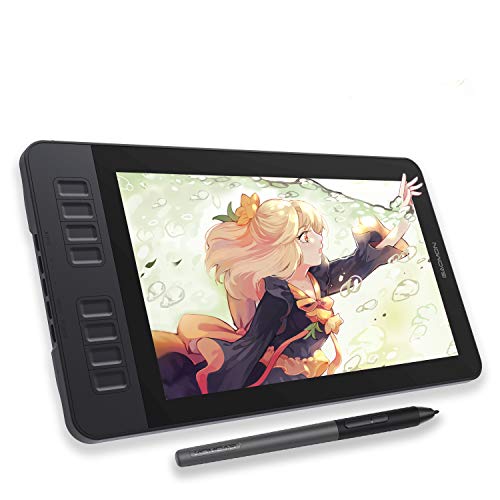
- 11.6-inch Full HD matte display
- Battery-free tilt-support stylus
- Eight shortcut keys and two pen buttons
Best For: Beginners, students, and remote-work annotation
Balanced Pro Workflow
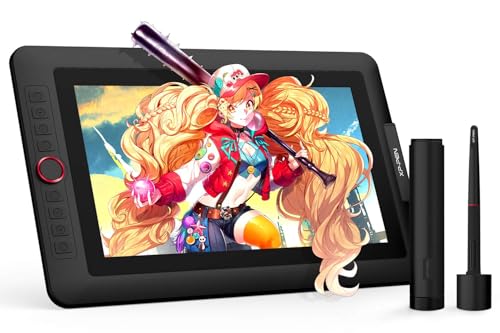
- 13.3-inch laminated FHD display
- 16K pressure with 60-degree tilt
- Red dial and eight customizable keys
Best For: Artists and editors wanting compact, configurable controls
Best Color Accuracy – HUION Kamvas 13 (Gen 3)
The HUION Kamvas 13 (Gen 3) is a strong drawing tablet with screen for creators who prioritize precise pen control, calibrated color, and a portable setup. Its 13.3-inch full-laminated Canvas Glass 2.0 surface is designed to reduce glare while retaining a paper-like drawing feel. Keep in mind that it must be connected to a computer or laptop to work.
Best For: Artists, designers, and students who want accurate color and advanced shortcut controls in a portable pen display.
Pros:
- 16,384 pressure levels and PenTech 4.0 support precise, responsive strokes.
- 99% sRGB/Rec.709, 90% Adobe RGB, and factory calibration to ΔE<1.5 support color-focused work.
- Two dials and five press keys provide convenient workflow controls.
- At 11.7mm thick and 865g, it is relatively easy to carry.
Cons:
- It is not standalone and requires a compatible computer, laptop, or supported Android device.
- Some connections may require the included cable arrangement or a full-featured USB-C cable.
Choose this model when color fidelity and customizable controls matter more than working without a host device. Its symmetrical design also accommodates left- and right-handed users.
Best Compact Starter – XP-PEN Artist12
The XP-PEN Artist12 is a compact drawing tablet with screen that combines an 11.6-inch Full HD display with customizable controls and a battery-free stylus. It suits drawing, animation, photo editing, and online instruction, but it must connect to a computer and requires available HDMI and USB-A ports or suitable adapters.
Best For: Beginners, students, teachers, and creators who want a small pen display with straightforward shortcut controls.
Pros:
- 1920×1080 IPS display offers detailed images with 100% sRGB coverage as listed.
- Battery-free pen provides 8,192 pressure levels and includes an eraser end.
- Six customizable shortcut keys and a programmable touch bar support faster navigation.
- Works with Windows, Mac, Linux, and many common creative applications.
Cons:
- It cannot operate independently and must be connected to a computer.
- HDMI and USB-A ports are needed, or an additional converter may be required.
- Its 11.6-inch workspace is more compact than larger pen displays.
This is a practical entry point for direct-on-screen drawing, especially when desk space is limited. The included pen holder, glove, and replacement nibs add useful setup extras.
Best Large-Screen Workflow – HUION Kamvas Pro 16
The HUION Kamvas Pro 16 is a drawing tablet with screen for creators who prefer a larger 15.6-inch workspace and vibrant color. Its full-laminated, anti-glare display pairs with six shortcut keys, a touch bar, and an included adjustable stand. This pen display is not standalone and must be connected to a computer or laptop.
Best For: Artists and designers who want more screen area, vivid color, and an adjustable desktop drawing position.
Pros:
- 15.6-inch 1920×1080 display provides a spacious drawing area.
- 120% sRGB color gamut volume and a 1000:1 contrast ratio support vivid visuals.
- Six express keys, a touch bar, and programmable pen buttons streamline common actions.
- Included ST200 stand adjusts from 20 to 60 degrees.
Cons:
- It requires a connected Windows, Mac, or Linux computer to function.
- The larger 15.6-inch design is less portable than smaller pen displays.
- Its listed 8,192 pressure levels are lower than some newer models.
The Kamvas Pro 16 makes sense if a roomy canvas and comfortable viewing angle are priorities. The included stand and touch controls make it particularly suitable for longer drawing or design sessions.
Best Beginner Controls – GAOMON PD1161
The GAOMON PD1161 is a drawing tablet with screen aimed at beginners and everyday creators who want to sketch, paint, annotate, or edit directly on a Full HD display. Its matte film reduces glare and adds a paper-like feel, while the tablet must be connected to a Windows or Mac computer to operate.
Best For: Beginner artists, students, and remote workers who value simple physical shortcuts and a familiar pen feel.
Pros:
- 11.6-inch Full HD IPS screen supports direct drawing with a matte, anti-glare surface.
- Battery-free stylus offers 8,192 pressure levels and tilt functionality.
- Eight customizable shortcut keys and two pen buttons support an efficient workflow.
- Compatible with Windows, macOS, and software such as Krita, Blender, Photoshop, and Zoom.
Cons:
- It is not standalone and needs a compatible computer to work.
- HDMI and USB connections are required; an adapter may be needed for some computers.
- The compact screen provides less workspace than 15.6-inch models.
This model is a sensible choice for learning digital art or adding handwritten input to remote work. Its generous shortcut-key layout offers more direct controls than many compact alternatives.
Best for Precision Control – XPPen Artist 15.6 Pro V2
The XPPen Artist 15.6 Pro V2 is a strong drawing tablet with screen for artists who want a spacious, color-accurate display and extensive shortcut customization. Its 16K pressure-sensitive stylus, full lamination, and anti-glare etched glass support detailed, comfortable work, though it must be connected to a computer or laptop.
Best For: Digital artists, illustrators, and designers who prioritize screen size, color accuracy, and workflow controls.
Pros:
- 15.4-inch full-laminated anti-glare display helps reduce parallax.
- 16,384 pressure levels provide precise, smooth strokes.
- 99% sRGB, 96% Adobe RGB, and 96% Display P3 coverage support color-focused work.
- Red dial and eight customizable shortcut keys streamline common controls.
Cons:
- Requires connection to a computer or laptop.
- The included stand adjusts to a 90-degree angle, but adds to the overall setup.
Choose this model if you want a larger drawing workspace and hands-on control over your tools. Its strong gamut coverage and ergonomic stand make it particularly suitable for longer illustration or design sessions.
Best Compact Value – UGEE UE12
The UGEE UE12 is a compact drawing tablet with screen that combines an 11.6-inch Full HD laminated display with a battery-free stylus. Its broad claimed color gamut, shortcut keys, and support for computers, Android devices, and major creative software make it a flexible option for everyday digital art.
Best For: Students, hobbyists, and artists seeking a portable screen tablet with broad device compatibility.
Pros:
- Full-laminated 1920×1080 anti-glare screen is designed for precise, low-parallax drawing.
- Battery-free pen offers 16K-level pressure sensitivity and 60-degree tilt support.
- Eight customizable shortcut keys support quick access to common tools.
- Dual USB-C ports and included 3-in-1 cable allow flexible connections.
Cons:
- The 11.6-inch screen provides less workspace than larger models.
- Connectivity and compatibility may require checking the specific Android or computer setup.
The UE12 is a practical choice when desk space and portability matter. It offers useful pen features and shortcut controls without giving up a built-in display, while its compatibility list supports several creative workflows.
Best for Portable Pro Work – XPPen Artist 12 3rd
The XPPen Artist 12 3rd is a lightweight drawing tablet with screen designed for artists who work across locations. Its 11.9-inch Full HD AG glass display, 16K X4 Pen, dual X-Dial wheels, and factory-calibrated color make it well suited to detailed drawing, illustration, and design on a compact setup.
Best For: Students, freelancers, and mobile artists who want precise controls in a lightweight format.
Pros:
- Weighs 1.58 pounds and has narrower bezels for portability and drawing space.
- 16,384 pressure levels, 60-degree tilt support, and a 2g initial pressure rating support detailed strokes.
- AG etched, fully laminated glass reduces glare and helps minimize parallax.
- Dual X-Dial wheels, eight keys, and broad operating-system support add flexibility.
Cons:
- The 11.9-inch screen is less spacious than a 15.4-inch alternative.
- It is a pen display that relies on a compatible computer or device connection.
This model stands out for creators who value portability without giving up advanced pen response or hardware controls. Its factory-calibrated color and included stand make it a capable choice for mobile creative work and extended drawing sessions.
Wide-Color Creative Pick – UGEE UE16 15.4-inch Drawing Tablet
The UGEE UE16 is a strong drawing tablet with screen for artists who want a spacious 15.4-inch workspace, vivid color coverage, and extensive shortcut controls. Its full-laminated 1920×1080 display, battery-free stylus, and broad operating-system compatibility make it suitable for drawing, design, and digital annotation.
Best For: Artists, students, and teachers who prioritize a large screen, wide color gamut, and customizable workflow controls.
Pros:
- 143% sRGB color gamut with sRGB, Adobe RGB, DCI-P3, and black-and-white modes.
- 16,384 pressure levels, 60-degree tilt support, and a battery-free stylus with eraser.
- Eight shortcut keys plus a multifunction scroll wheel for zooming and other controls.
- Supports Windows, macOS, ChromeOS, Android, and Linux.
Cons:
- Requires connection to a compatible computer, tablet, or smartphone rather than operating as a standalone device.
- The 3-in-1 cable is packed separately, so the parcel should be checked carefully for all components.
The UE16 stands out when color flexibility and screen size matter more than portability. It is a well-equipped option for creators who want a feature-rich drawing display with physical controls.
Balanced Pro Workflow – XPPen Artist 13.3 Pro V2
The XPPen Artist 13.3 Pro V2 is a versatile drawing tablet with screen designed for creators who want a compact display with strong workflow controls. Its fully laminated FHD screen, red dial, eight customizable keys, and battery-free tilt-sensitive stylus support illustration, photo editing, animation, and 3D work.
Best For: Digital artists, animators, concept artists, and editors who want a portable professional-style setup with customizable controls.
Pros:
- 13.3-inch fully laminated FHD display with 178-degree viewing angle and up to 123% sRGB coverage.
- 16,384 pressure levels, 60-degree tilt support, low initial activation force, and battery-free operation.
- Red dial and eight customizable shortcut keys help streamline zooming, brush sizing, and canvas controls.
- Includes a stand, pen holder with replacement nibs, glove, cleaning cloth, and multiple connection options.
Cons:
- Must be connected to a computer or laptop; it is not a standalone drawing tablet.
- The 13.3-inch workspace is smaller than larger 15.4-inch alternatives.
This model offers a particularly balanced mix of display quality, pen performance, and hands-on controls. It is a practical choice for creators who want advanced features without moving to a larger display.
Compact Teaching-Friendly Choice – XPPen Artist 12 Pro
The XPPen Artist 12 Pro is a compact drawing tablet with screen for digital art, annotation, and remote instruction. Its 11.6-inch fully laminated display minimizes parallax, while the red dial, eight shortcut keys, and battery-free stylus provide convenient control for drawing and computer-based teaching tasks.
Best For: Beginners, teachers, remote tutors, and artists who need a smaller display for drawing, annotation, or online lessons.
Pros:
- Fully laminated anti-glare screen delivers virtually zero parallax for accurate cursor placement.
- Battery-free stylus offers 8,192 pressure levels and 60-degree tilt support.
- Red dial and eight customizable keys provide quick access to zoom, brush size, and other controls.
- Supports Windows, macOS, ChromeOS, and Linux and works with major creative software.
Cons:
- Must connect to a computer or laptop and cannot be used as a standalone tablet.
- The 11.6-inch screen and 72% NTSC color coverage are more modest than the larger, newer options here.
The Artist 12 Pro is best viewed as a practical, space-saving display for focused drawing and productivity. Its teaching and conferencing capabilities also make it useful beyond traditional illustration.
How We Picked the Best Drawing Tablet with Screen
We compared these pen displays by looking at the features that most affect everyday drawing: screen size, resolution, color coverage, pen pressure sensitivity, tilt support, parallax, shortcut controls, connectivity, and overall value. We also considered whether each model is better suited to beginners, portable setups, detailed illustration, photo editing, or professional design work.
Specifications can vary by region and operating system, so check the manufacturer’s current compatibility list before buying. Most of these displays require a computer connection and are not standalone tablets.
Quick Comparison
| Best For | What to Look For |
|---|---|
| Beginners and students | Compact 11.6-inch display, simple setup, comfortable stylus, and useful shortcut keys |
| Portable drawing | Lightweight design, USB connectivity, and a smaller screen that fits limited desk space |
| Illustration and design | Full-laminated display, low parallax, tilt support, and high pressure sensitivity |
| Color-sensitive work | Wide color gamut, reliable calibration options, and a bright, sharp screen |
| Large-canvas workflows | 15.4- or 15.6-inch display with enough workspace for detailed compositions |
Key Buying Factors for a Drawing Tablet with Screen
Display Size and Resolution
An 11.6-inch display is easier to transport and usually costs less, while a 15.4- or 15.6-inch model provides more room for panels, reference images, and detailed artwork. Full HD is adequate for most users, but screen quality also depends on brightness, viewing angles, and surface finish.
Pen Performance
Pressure sensitivity affects how naturally lines respond to your hand. Modern 16K pressure systems can provide excellent control, but calibration and software support matter just as much. Tilt recognition is especially useful for shading and brush effects. Battery-free pens eliminate charging and reduce maintenance.
Surface, Color, and Parallax
A full-laminated screen can make the cursor feel closer to the pen tip by reducing the gap between the glass and display layer. Matte or anti-glare surfaces improve comfort under bright lighting. If you create print, branding, or photo work, prioritize wide color coverage and plan to calibrate the display.
Controls and Compatibility
Shortcut keys, touch bars, and customizable buttons can speed up zooming, undoing, brush changes, and canvas rotation. Confirm compatibility with your operating system and preferred applications, including Photoshop, Clip Studio Paint, Illustrator, Krita, or other creative software. Also check whether the required cables, stand, and power adapter are included.
Who Should Buy Which Drawing Tablet with Screen?
Choose a compact 11.6-inch model if you are a student, beginner, traveling artist, or working at a small desk. Choose a 13.3-inch display for a practical middle ground between portability and workspace. Choose a 15.4- or 15.6-inch tablet if you create detailed illustrations, comics, animations, or large design layouts and have room for a permanent setup.
For the most natural drawing feel, prioritize a full-laminated screen, strong pen calibration, and tilt support. For color-critical work, favor the model with the widest useful color gamut and the best calibration workflow rather than choosing based on pressure sensitivity alone.