The best drawing tablets for Mac make digital art, photo retouching, animation, and design feel more precise and natural than using a mouse or trackpad. The right choice depends on whether you prefer drawing on a separate surface or directly on a built-in screen.
We selected 10 options across several sizes, budgets, and workflows, including compact beginner tablets, large professional models, and pen displays with customizable controls. Use the guide below to narrow the list by compatibility, workspace, pressure response, and everyday comfort.
Best 10 Drawing Tablets for Mac Picks for 2026
Best Compact Wireless Pick

- Battery-free 4,096-level pressure-sensitive pen
- Bluetooth and USB-A connectivity
- Four ExpressKeys plus included software access
Best For: Students and creators wanting a portable Mac tablet
Best Screen Model

- 13.3-inch laminated drawing display
- 16,384 pressure levels with PenTech 4.0
- 99% sRGB and included adjustable stand
Best For: Artists who want direct-on-screen drawing on Mac
Best Large Beginner Pad

- 10 x 6.25-inch drawing area
- 16,384-level battery-free stylus with tilt support
- Eight customizable keys for left- or right-handed use
Best For: Beginners wanting a spacious Mac-compatible drawing pad
Best Medium Wireless Pad

- 8.5 x 5.31-inch active drawing area
- Bluetooth or USB-A connectivity
- Battery-free 4,096-level pen and four ExpressKeys
Best For: Mac users wanting more room with wireless flexibility
Best Screened Option
- 13.3-inch fully laminated FHD display
- 16,384 pressure levels with 60° tilt
- Dial and eight customizable shortcut keys
Best For: Artists who want a Mac-compatible pen display
Best Large Pen Tablet

- 10.5-by-6.56-inch screenless work area
- Three shortcut groups plus scroll wheel
- Battery-free PenTech 3.0 stylus
Best For: Mac users needing space and customizable controls
Best Compact Budget Pick
- Compact 6-by-4-inch active area
- 2 mm-thin portable design
- Battery-free stylus with 8,192 pressure levels
Best For: Beginners, teachers, and mobile Mac users
Best Screen-Based Pick
- 11.6-inch Full HD display for direct drawing
- Battery-free, tilt-supporting pen with 8,192 levels
- Eight programmable keys plus Mac compatibility
Best For: Beginners and artists who want a pen display
Best Professional Wireless Tablet

- Pro Pen 3 with pressure, tilt, and lag-free tracking
- Ten ExpressKeys and two mechanical dials
- USB-C or Bluetooth connectivity for Mac
Best For: Creative professionals who need precise controls and wireless flexibility
Best Shortcut-Rich Value
- Large 10-by-6.25-inch active working area
- 12 press keys and 16 programmable soft keys
- Battery-free, tilt-supporting pen for Mac
Best For: Artists and hobbyists who want lots of customizable controls
Best Compact Wireless Pick – Wacom Intuos Small
The Wacom Intuos Small is a practical choice for shoppers seeking drawing tablets for Mac without a built-in display. Its compact active area, battery-free pen, Bluetooth connectivity, and compatibility with macOS make it suitable for digital art, photo editing, note-taking, and online education.
Best For: Students, teachers, and creators who want a portable Mac-compatible tablet with wireless connectivity.
Pros:
- Battery-free pen with 4,096 pressure levels for a pen-on-paper feel.
- Bluetooth or USB-A connectivity provides flexible setup options.
- Four ExpressKeys support convenient shortcuts.
- Software and online training are included after registration.
Cons:
- The small 6 x 3.7-inch active area may feel limiting for broad gestures.
- It requires a Mac or other compatible computer rather than working as a standalone display.
This Intuos model is a sensible fit when desk space and portability matter more than a large drawing surface. Choose it for dependable everyday control and wireless convenience on a Mac.
Best Screen Model – HUION Kamvas 13 (Gen 3)
The HUION Kamvas 13 (Gen 3) stands out among drawing tablets for Mac because it provides a 13.3-inch screen for direct on-display drawing. It must connect to a computer or laptop, but its laminated display, color coverage, pressure-sensitive pen, shortcut keys, and included stand support a more monitor-like creative workflow.
Best For: Artists, illustrators, and designers who prefer drawing directly on a color-accurate display.
Pros:
- 13.3-inch fully laminated Canvas Glass 2.0 display helps reduce glare and improve accuracy.
- PenTech 4.0 offers 16,384 pressure levels and 2g initial activation force.
- 99% sRGB coverage, 16.7 million colors, and factory calibration support consistent visuals.
- Five shortcut keys, dual dials, and an adjustable stand streamline the workflow.
Cons:
- It is not standalone and must connect to a compatible computer or laptop.
- The 2-pound display is less compact than a screenless pen tablet.
- Its included 3-in-1 cable setup may be less convenient than a wireless connection.
For Mac users who want to see their artwork beneath the pen tip, the Kamvas 13 (Gen 3) offers a feature-rich step up from a traditional pad. Confirm your Mac supports macOS 10.12 or later and the required display connection.
Best Large Beginner Pad – XPPen Deco 01 V3
The XPPen Deco 01 V3 is a spacious screenless option for shoppers comparing drawing tablets for Mac. Its 10 x 6.25-inch drawing area, battery-free 16K stylus, eight customizable keys, and compatibility with macOS 10.13 or later give beginners room to practice while keeping shortcuts close at hand.
Best For: Beginners who want a large drawing surface, customizable controls, and a lightweight setup.
Pros:
- Large 10 x 6.25-inch working area provides room for drawing and shading.
- Battery-free stylus supports 16,384 pressure levels and up to 60 degrees of tilt.
- Eight customizable shortcut keys work for both right- and left-handed users.
- USB-C connectivity, adapters, and an 8 mm-thin design support flexible portable use.
Cons:
- It has no built-in screen, so you draw while viewing the Mac display.
- USB-C-to-USB-C connectivity may require checking your Mac’s available ports and adapters.
- The notes recommend updating macOS to version 12 first for compatibility.
The Deco 01 V3 is a strong starting point when surface area matters more than a display. Its generous pad and extensive shortcut controls make it particularly practical for learning, illustration, and note-taking on a Mac.
Best Medium Wireless Pad – Wacom Intuos Medium
The Wacom Intuos Medium offers more working room than a compact pad while retaining the convenience expected from drawing tablets for Mac. Its 8.5 x 5.31-inch active area, Bluetooth connection, battery-free pen, and macOS compatibility make it a balanced option for digital art, editing, design, and general creative work.
Best For: Mac users who want a comfortable medium-size tablet with wireless or wired connectivity.
Pros:
- Medium active area gives more room for strokes than the small Intuos model.
- Battery-free pen provides 4,096 pressure levels.
- Bluetooth and USB-A allow wireless or direct connection.
- Four ExpressKeys, included software access, and online training add practical value.
Cons:
- It is a screenless tablet, so artwork appears on the connected Mac rather than under the pen.
- The USB-A cable may require an adapter on Macs without USB-A ports.
- It is less compact than the small Intuos option.
The Intuos Medium is a well-rounded choice for users who want a larger canvas without moving to a pen display. It suits regular creative work where comfortable control and Bluetooth flexibility are priorities.
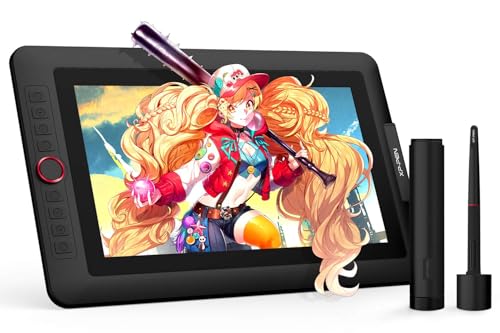
Best Screened Option – XPPen Artist 13.3 Pro V2
For shoppers comparing drawing tablets for Mac, the XPPen Artist 13.3 Pro V2 is a pen display that connects to a Mac or laptop rather than working independently. Its 13.3-inch fully laminated screen, high color gamut, and battery-free stylus make it a strong choice for artists who want to draw directly on the display.
Best For: Illustrators, animators, concept artists, and photo editors who prefer a screened drawing workspace.
Pros:
- 13.3-inch fully laminated FHD display with 88% NTSC color coverage and a 178-degree viewing angle.
- Battery-free stylus offers 16,384 pressure levels and up to 60 degrees of tilt support.
- Red dial and eight customizable shortcut keys can streamline common drawing tasks.
- Supports Mac OS X 10.10 or later and major software such as Photoshop, Illustrator, SAI, and Blender 3D.
Cons:
- Requires connection to a computer or laptop; it is not a standalone tablet.
- The larger screened design is less portable than a compact pen tablet.
The Artist 13.3 Pro V2 is the most display-focused option here, combining direct-on-screen drawing with extensive color and shortcut controls. Choose it if visual feedback and a natural pen-display workflow matter more than minimal desk space.
Best Large Pen Tablet – HUION Inspiroy 2 Large
The HUION Inspiroy 2 Large is a screenless option for drawing tablets for Mac, offering a broad 10.5-by-6.56-inch working area while keeping the setup relatively slim. Connect it to a compatible Mac, install the driver, and use the battery-free stylus with creative software, office apps, or online learning tools.
Best For: Mac users who want a spacious, customizable tablet for drawing, editing, animation, notes, or remote work.
Pros:
- Large 10.5-by-6.56-inch work area provides room for drawing and editing.
- PenTech 3.0 stylus is designed for precision, reduced wobble, and comfortable extended use.
- Three groups of eight programmable keys plus a scroll wheel support app-specific shortcuts.
- Works with macOS 10.12 or later, Windows, Linux Ubuntu, and certain Android devices.
Cons:
- Has no display, so you view your artwork on the connected device.
- Must be connected to a computer, laptop, or compatible smartphone to work.
- Its large active area may take more desk space than a compact tablet.
With its generous surface and extensive shortcut system, the Inspiroy 2 Large suits users who value control and workspace over drawing directly on a screen. It is a practical middle ground for Mac-based creative work without the cost or bulk of a pen display.
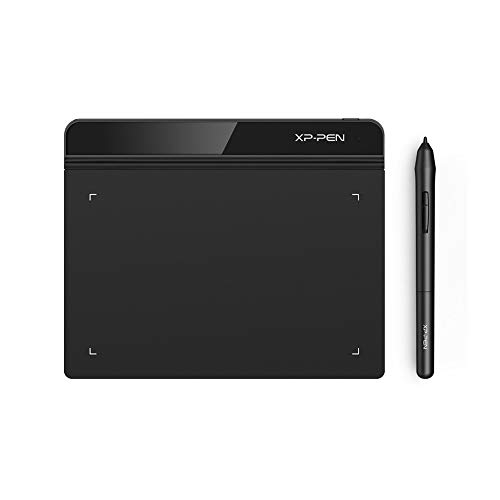
Best Compact Budget Pick – XPPen StarG640
If you need simple drawing tablets for Mac for sketching, signatures, teaching, or remote work, the XPPen StarG640 keeps the setup straightforward. This compact 6-by-4-inch tablet connects over USB, includes a battery-free pen, and is only 2 mm thick for easy carrying.
Best For: Students, teachers, remote workers, beginners, and anyone seeking a portable Mac-compatible pen tablet.
Pros:
- Compact 6-by-4-inch active area and slim 2 mm profile are easy to carry.
- Battery-free stylus supports uninterrupted drawing without charging.
- Useful for drawing, photo editing, digital signatures, online teaching, and remote work.
- Compatible with Mac OS X 10.10 or later, Windows, and Chrome OS 88 or later.
Cons:
- No built-in display; artwork appears on the connected computer.
- Smaller active area offers less room than the HUION Inspiroy 2 Large.
- Does not list dedicated programmable shortcut keys.
The StarG640 is a practical choice when portability and basic pen input matter most. Its compact surface is well suited to everyday tasks, though artists who want more workspace or advanced controls may prefer a larger model.
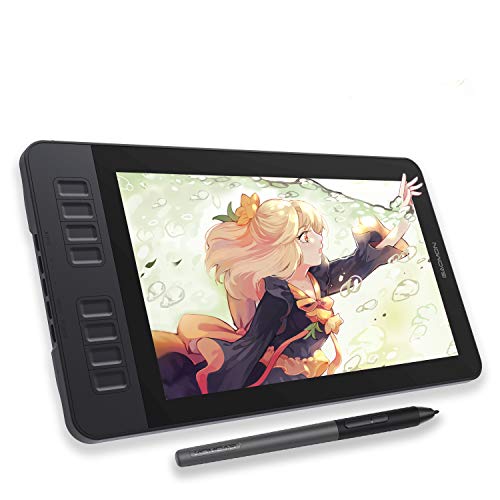
Best Screen-Based Pick – GAOMON PD1161
If you prefer drawing directly on your artwork, the GAOMON PD1161 is a practical choice among drawing tablets for Mac. Its 11.6-inch Full HD display has a matte surface for a paper-like feel, while the battery-free pen supports pressure and tilt input. Keep in mind that it is a pen display, not a standalone tablet, so it must connect to a compatible Mac or PC.
Best For: Beginners, students, and artists who want an affordable screen-based workflow for drawing, painting, image editing, or digital notes.
Pros:
- 11.6-inch Full HD IPS screen lets you draw directly on the display.
- Battery-free stylus offers 8,192 pressure levels and tilt support.
- Eight programmable shortcut keys and two pen buttons help streamline common actions.
- Compatible with macOS 10.12 or later and software such as Photoshop, Krita, and Blender.
Cons:
- Not standalone; it requires a connected computer.
- Mac setup requires available HDMI and USB ports, or an appropriate adapter.
- May need the included power adapter if the computer cannot supply enough power.
The PD1161 makes the most sense if an on-screen drawing experience matters more than portability. Check your Mac’s ports before buying, then use the customizable controls to build a comfortable creative setup.
Best Professional Wireless Tablet – Wacom Intuos Pro Medium
For professionals who value precision, shortcut control, and a clean desk setup, the Wacom Intuos Pro Medium is a strong option among drawing tablets for Mac. It uses a generous 8.7-by-5.8-inch active area, connects by USB-C or Bluetooth, and includes the adjustable Pro Pen 3 for a more personalized drawing feel.
Best For: Animators, designers, photographers, and other creative professionals working on Mac with demanding shortcut and pen-control needs.
Pros:
- Pro Pen 3 provides 8,192 pressure levels, tilt support, and lag-free tracking.
- Ten customizable ExpressKeys and two mechanical dials support efficient workflows.
- Bluetooth connectivity allows wireless use with multiple computers.
- Medium format provides a sizable active area while maintaining a relatively compact footprint.
Cons:
- Requires an external monitor because it is a screenless graphics tablet.
- Mac compatibility requires macOS 13 or later.
- Its professional feature set may be more than casual users need.
The Intuos Pro Medium is best suited to users who already work comfortably with a monitor-based tablet and want premium controls. Its Bluetooth support and customizable pen configuration add flexibility for longer creative sessions.
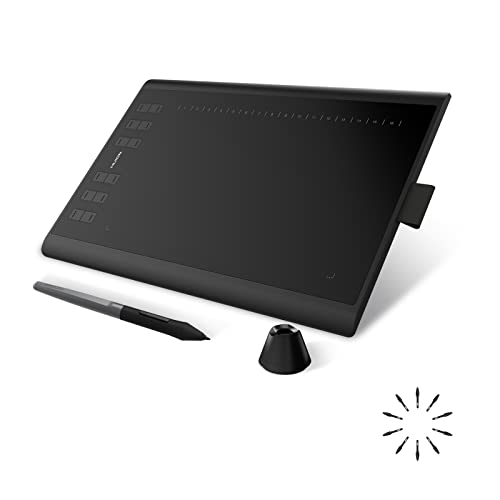
Best Shortcut-Rich Value – HUION Inspiroy H1060P
The HUION Inspiroy H1060P offers a large working surface and extensive shortcut customization without adding a built-in screen. As drawing tablets for Mac go, it is a flexible option for users who draw on a separate monitor and want a battery-free pen, tilt support, and plenty of programmable controls.
Best For: Artists, hobbyists, and beginners who want a spacious screenless tablet with many customizable shortcuts.
Pros:
- 10-by-6.25-inch working area provides room for drawing and painting.
- Battery-free PW100 stylus supports 8,192 pressure levels and ±60-degree tilt.
- Twelve programmable press keys and 16 soft keys offer extensive shortcut options.
- Supports macOS 10.12 or later, Windows, Android, and Ubuntu Linux.
Cons:
- It does not include a built-in drawing display.
- Mac connection requires a USB adapter.
- Ubuntu use requires the Xorg display server; Wayland is not supported.
The H1060P is a sensible pick when workspace and shortcut access matter more than wireless connectivity or an integrated screen. Its symmetrical design also accommodates left-handed users after adjusting the tablet in the driver.
How We Picked the Best Drawing Tablets for Mac
We focused on tablets that offer practical compatibility with macOS, dependable pen input, useful shortcut controls, and a good fit for distinct creative workflows. The lineup includes both traditional graphics tablets, which connect to a Mac while you draw on a separate surface, and pen displays, which let you draw directly on the screen.
We also considered active drawing area, portability, stylus design, customization, connection requirements, and value. Compatibility can vary by macOS version and creative application, so check the manufacturer’s current driver and software support before buying.
Quick Comparison
| Tablet type | Best for | Main advantage |
|---|---|---|
| Small pen tablet | Beginners and travel | Compact, affordable setup |
| Medium pen tablet | General illustration and editing | Balanced workspace and control |
| Large pen tablet | Detailed or broad-stroke work | More room for arm movement |
| Pen display | Artists who want direct drawing | Screen-based, intuitive workflow |
| Professional tablet | Frequent creative work | Advanced pen and shortcut features |
Key Buying Factors for Drawing Tablets for Mac
Tablet Type and Size
A screenless tablet is usually lighter, less expensive, and easier to position beside a MacBook or monitor. Small models suit limited desks and occasional use, while medium and large surfaces provide more comfortable control for illustration and animation. Pen displays feel more immediate but require additional desk space, cables, and power.
Mac Compatibility and Connections
Confirm support for your macOS version, preferred art apps, and Mac ports. Some models connect through USB, while displays may need HDMI, USB, or an adapter. Driver quality matters because it controls pressure sensitivity, button mapping, display alignment, and multi-monitor behavior.
Stylus Performance
Look for a battery-free pen when possible, since it avoids charging interruptions. Pressure sensitivity, tilt support, low-lag tracking, and a comfortable grip affect line control more than headline specifications alone. Replacement nib availability is also worth checking for frequent use.
Controls and Ergonomics
Shortcut keys and dials can speed up zooming, undoing, brush resizing, and tool changes. Make sure the active area matches your monitor arrangement and that the tablet can be used comfortably for long sessions. A larger surface is not automatically better if it forces awkward wrist or shoulder movement.
Who Should Buy Which Drawing Tablets for Mac?
Beginners and students: Choose a compact or mid-size screenless tablet for lower cost and simple setup. Illustrators and hobby artists: A medium or large model offers more room for expressive strokes and detailed work. Artists moving from paper: A pen display may feel more intuitive because the cursor stays beneath the stylus. Photo editors and designers: Prioritize customizable keys, accurate tracking, and a size that leaves space for your keyboard. Professional users: Invest in the most comfortable pen, durable build, responsive controls, and driver support rather than choosing by resolution or pressure-count claims alone.